> For the complete documentation index, see [llms.txt](https://docs.does.qa/llms.txt). Markdown versions of documentation pages are available by appending `.md` to page URLs; this page is available as [Markdown](https://docs.does.qa/better-coverage/reuse-steps-with-step-groups.md).
# Reuse steps with Step Groups
Create reusable Step Groups so shared journeys stay in sync across Flows.
A Step Group is a reusable set of [Test Steps](/getting-started/terminology.md). Build a login, consent, or setup journey once, drop the group into other Flows, and keep every usage in sync when you edit it.
```mermaid
flowchart TD
select["Select login steps"] --> group["Create Group"]
group --> name["Name the Step Group"]
name --> reuse["Drop the group into other Flows"]
```
Use the **Flow Builder** for this walkthrough.
## Create a Step Group
{% stepper %}
{% step %}
## Select the steps to reuse
Open a Flow in the Flow Builder and select the Test Steps that should travel together.
Hold **Shift** and drag to box-select, or hold **Ctrl** (Windows) or **Cmd** (Mac) and click to add steps. Start from the steps after [**Open**](/test-steps/starter/open.md). Open stays at the start of the Flow.
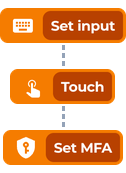
A typical login selection looks like set credentials, submit, and MFA when you need it:
Example steps to select before grouping
{% endstep %}
{% step %}
## Group the selection
Right-click the selection and choose **Create Group**. You can also press **Ctrl+G** or **Cmd+G**.
DoesQA replaces the selected steps with one [Step Group](/test-steps/step-group.md) on the canvas.
Step Group
{% endstep %}
{% step %}
## Name the group
Double-click the Step Group, set the **Name**, and save.
{% endstep %}
{% endstepper %}
{% hint style="info" %}
**Pro tip:** Hold **Shift** while dragging to select several Test Steps at once, then press **Ctrl+G** or **Cmd+G** to group them.
{% endhint %}
## Edit a Step Group
Double-click a Step Group to change its **Name** or the Test Steps inside it.
{% hint style="warning" %}
Saving a Step Group updates every Flow that uses it. That is the point of reuse: fix the group once, and every journey that depends on it stays aligned.
{% endhint %}
Removing a Step Group from one Flow only removes that instance. The shared group remains available for other Flows.
## Use a Step Group in another Flow
1. Open the destination Flow in the Flow Builder.
2. Open the Test Step library.
3. Find the group under **Step Groups**.
4. Drag it onto the canvas where the shared journey should run.
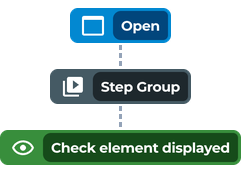
A Flow that reuses login often looks like Open, then the Step Group, then a Check:
Example Flow after dropping a Step Group
## Manage Step Groups
Open **Assets → Groups** to review every Step Group in the account.
From there you can:
* Edit a group
* **Duplicate Step Group** to create a copy
* **Delete Step Group** when nothing still uses it
* See which Flows use a group
You can also open the same list from the Flow Builder with **Manage Step Groups**.
Prefer a Step Group when you need the same *steps*. Prefer [DoesQA Run](/test-steps/express/doesqa-run.md) when you need to share a live *session* into child Runs. See [Reuse a login session](/guides/reuse-a-login-session.md).
## Related
* [Step Group](/test-steps/step-group.md)
* [Reuse a login session](/guides/reuse-a-login-session.md)
* [DoesQA concepts](/getting-started/doesqa-concepts.md)
* [Create and run your first Flow](/getting-started/create-and-run-your-first-flow.md)
* [Flow Builder](/platform/flow-builder.md)